I've converted my last post on WSO2 Carbon Studio and Gadget Server, to a tutorial with more description added.
It is published in WSO2 Oxygen tank - Library as "Creating a gadget for WSO2 Gadget Server using Carbon Studio"
Tuesday, November 2, 2010
Wednesday, October 13, 2010
Adding a gadget to WSO2 Gadget Server using cApp
In previous posts I've explained how to install WSO2 cApp into eclipse and how to start creating a WSO2 product artefact.
So as I promised in the earlier posts, here is how you create an artefact. In this post I will explain how to create a gadget which can be deployed in WSO2 Gadget Server and viewed from Gadgets' portal.
1. Create a cApp project as in here.
2. Create a gadget artefact.
Click on 'Create New artefact' button in root-artifact.xml in your cApp project and Select "Gadget" OR Right click on the cApp project you created and Select "Gadget". You will get 'New Gadget" creation wizard.
At the 'Name' prompt, give your gadget artifact a name and proceed.

In the next screen, specify a name for the folder containing you gadget specific artifacts and finish the wizard.
NOTE: The project that you will be creating the artifact in will appear selected in this window. If you want you can change it here.
So after this initial step you should have your project structure like this:

3. Develope the gadget code.
WSO2 cApp loads open social development environment (OSDE) in Eclipse. This is one of the plugins that is getting installed with cApp. So if you double click on your .xml file (maps.xml in my case) you will have the OSDE opened up on the right side of the IDE.
Now lets fill in the gadget code. The code that I am going to put in is a sample taken from googles gadget docs (http://code.google.com/apis/gadgets/docs/fundamentals.html#location).
In the proceeding steps I will show you how easy it is to create and deploy this using cApps.
And it is as simple as filling the tabs that you find at the bottom your IDE (see the image below).

ModulePrefs such as title, author, author_email can be filled in Basic tab - 'Attributes' section, fetures can be put in 'Features' section of the same.
I have a UserPref, 'loc' in my gadget which I created in 'UserPref' tab and yes I made it a required parameter. Since it doesn't have a default value I kept that option empty and I stick to default 'String' data type.
Then in the 'Content tab', I added my content. Click 'Add' button in 'Content' tab and say its an 'html' content (as you see in above code it is Content type="html"), and since I go by default view I can leave 'view' type empty.
After you do that, you will have an entry created for the view that you added just now and now you need to fill in the 'Content' to it. So fill in 'Content'; This includes all things you put within CDATA tags.
NOTE: You DON'T need to type in <
4. Add the gadget to server's gadget repository.
You need to have a WSO2 Gadget Server binary distribution with you. Download it from here, extract and you are ready.
While in J2EE perspective in eclipse, go to Server area and add a WSO2 Gadget Server as described here. This will let you start the server from within eclipse.
After you started the server; Login to Gadget Server admin console and navigate to '/_system/config/repository/dashboards/gadgets' folder in internal registry. You will see the gadget that was deployed from cApp in here.

You can view and edit your gadget code from here.

Now that we saw the gadget having deployed in the Server from cApp, we have to follow two more steps to make it available in Gadgets' portal where it is actually used.
i. Grant anonymous user permission to the gadget.
For this navigate to '/_system/config/repository/dashboards/' in Registry and grant all permissions to 'anonymous user' for gadgets folder.

ii. Add the gadget to gadget repository.
From 'Manage Gadget Server' menu access 'Gadget Repository'. Click 'Add New Gadget' link from there. You need to add the gadget's information there.
Gadget Name : Maps
Gadget URL : /registry/resource/_system/config/repository/dashboards/gadgets/maps.xml
You can add an image and description as you prefer.
iii. Make the gadget available by default
So now the gadget is added to the repository. We need to make it a default gadget.
Go to Gadget Repository and look for your maps gadget. Once you find it enable 'Make Default' and 'Show Gadget To Anonymous User' options.

Make Default -
Makes the gadget available to be added by any user who signs into gadget portal.
Show Gadget To Anonymous User -
Makes gadget available as a default gadget to non-signed in users.
5. Access the gadget from Gadgets' Portal
Now let's move to gadgets portal and use our gadget there.
i. Click on "View Portal' menu or directly accesss http://localhost:8080/portal
You could be automatically signed in as admin if you are in same browser session. Else click on 'Sign-in' link and sign in as admin (until u register a new user).
ii. Click on 'add tab' button on top of the portal window to add a new tab.
iii. Now let's our new gadget to this new tab. Click on 'Add Gadgets' button and it will open the gadget repository. Search for our 'maps' gadget and add it.
Return to the Dashboard and you'll see your gadgets!!!

So as I promised in the earlier posts, here is how you create an artefact. In this post I will explain how to create a gadget which can be deployed in WSO2 Gadget Server and viewed from Gadgets' portal.
1. Create a cApp project as in here.
2. Create a gadget artefact.
Click on 'Create New artefact' button in root-artifact.xml in your cApp project and Select "Gadget" OR Right click on the cApp project you created and Select "Gadget". You will get 'New Gadget" creation wizard.
At the 'Name' prompt, give your gadget artifact a name and proceed.
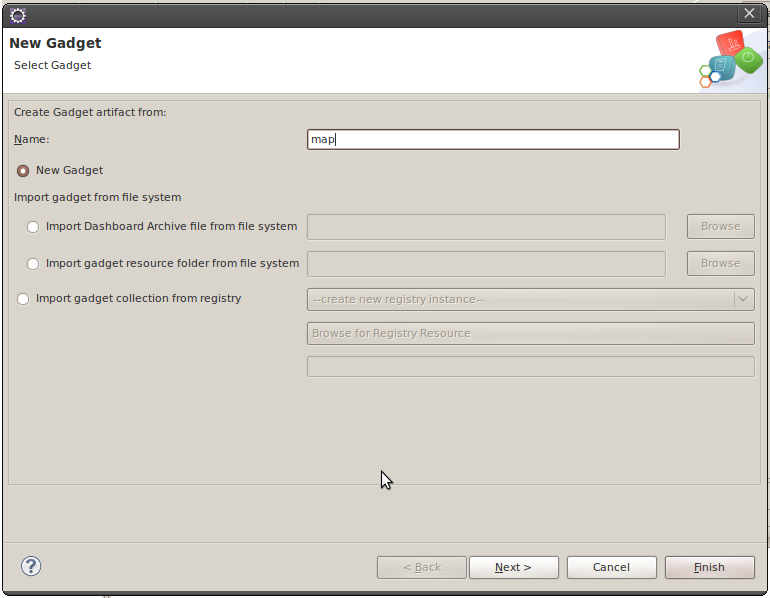
In the next screen, specify a name for the folder containing you gadget specific artifacts and finish the wizard.
NOTE: The project that you will be creating the artifact in will appear selected in this window. If you want you can change it here.
So after this initial step you should have your project structure like this:

3. Develope the gadget code.
WSO2 cApp loads open social development environment (OSDE) in Eclipse. This is one of the plugins that is getting installed with cApp. So if you double click on your .xml file (maps.xml in my case) you will have the OSDE opened up on the right side of the IDE.
Now lets fill in the gadget code. The code that I am going to put in is a sample taken from googles gadget docs (http://code.google.com/apis/gadgets/docs/fundamentals.html#location).
In the proceeding steps I will show you how easy it is to create and deploy this using cApps.
<?xml version="1.0" encoding="UTF-8" ?>
<Module>
  <ModulePrefs title="Map of __UP_loc__" height="300"
    author="Jane Smith"
    author_email="xxx@google.com" />
  <UserPref name="loc"
    display_name="Location"
    required="true" />
  <Content type="html">
  <![CDATA[
    <script src="http://maps.google.com/maps?file=js" type="text/javascript"></script>
    <div id="map" style="width: 100%; height: 100%;"></div>
    <script type="text/javascript">
    var prefs = new gadgets.Prefs();
    var map = new GMap(document.getElementById("map"));
    map.addControl(new GSmallMapControl());
    map.addControl(new GMapTypeControl());
    var geocoder = new GClientGeocoder();
    geocoder.getLatLng(prefs.getString('loc'), showMap)

    function showMap(point) {
      if (point!=null) {
        map.centerAndZoom(point, 6);
      }
    };
    </script>
  ]]>
  </Content>
</Module>
And it is as simple as filling the tabs that you find at the bottom your IDE (see the image below).

ModulePrefs such as title, author, author_email can be filled in Basic tab - 'Attributes' section, fetures can be put in 'Features' section of the same.
I have a UserPref, 'loc' in my gadget which I created in 'UserPref' tab and yes I made it a required parameter. Since it doesn't have a default value I kept that option empty and I stick to default 'String' data type.
Then in the 'Content tab', I added my content. Click 'Add' button in 'Content' tab and say its an 'html' content (as you see in above code it is Content type="html"), and since I go by default view I can leave 'view' type empty.
After you do that, you will have an entry created for the view that you added just now and now you need to fill in the 'Content' to it. So fill in 'Content'; This includes all things you put within CDATA tags.
NOTE: You DON'T need to type in <
4. Add the gadget to server's gadget repository.
You need to have a WSO2 Gadget Server binary distribution with you. Download it from here, extract and you are ready.
While in J2EE perspective in eclipse, go to Server area and add a WSO2 Gadget Server as described here. This will let you start the server from within eclipse.
After you started the server; Login to Gadget Server admin console and navigate to '/_system/config/repository/dashboards/gadgets' folder in internal registry. You will see the gadget that was deployed from cApp in here.

You can view and edit your gadget code from here.

Now that we saw the gadget having deployed in the Server from cApp, we have to follow two more steps to make it available in Gadgets' portal where it is actually used.
i. Grant anonymous user permission to the gadget.
For this navigate to '/_system/config/repository/dashboards/' in Registry and grant all permissions to 'anonymous user' for gadgets folder.

ii. Add the gadget to gadget repository.
From 'Manage Gadget Server' menu access 'Gadget Repository'. Click 'Add New Gadget' link from there. You need to add the gadget's information there.
Gadget Name : Maps
Gadget URL : /registry/resource/_system/config/repository/dashboards/gadgets/maps.xml
You can add an image and description as you prefer.
iii. Make the gadget available by default
So now the gadget is added to the repository. We need to make it a default gadget.
Go to Gadget Repository and look for your maps gadget. Once you find it enable 'Make Default' and 'Show Gadget To Anonymous User' options.

Make Default -
Makes the gadget available to be added by any user who signs into gadget portal.
Show Gadget To Anonymous User -
Makes gadget available as a default gadget to non-signed in users.
5. Access the gadget from Gadgets' Portal
Now let's move to gadgets portal and use our gadget there.
i. Click on "View Portal' menu or directly accesss http://localhost:8080/portal
You could be automatically signed in as admin if you are in same browser session. Else click on 'Sign-in' link and sign in as admin (until u register a new user).
ii. Click on 'add tab' button on top of the portal window to add a new tab.
iii. Now let's our new gadget to this new tab. Click on 'Add Gadgets' button and it will open the gadget repository. Search for our 'maps' gadget and add it.
Return to the Dashboard and you'll see your gadgets!!!

Tuesday, October 12, 2010
How to add a WSO2 Carbon server to cApps
You can add WSO2 Carbon Servers to Carbon Studio and deploy, undeploy artefacts created from cApp. This is how you do it.
1. You need to have a binary distribution of a WSO2 Carbon Server with you. For this post I will be using WSO2 Gadget Server. Download it from here and extract.
2. Install Carbon Studio in you eclipse IDE as described in here.
3. In the 'Server view', right click and Select New > Server and the "New Server" wizard will appear.
4. Scroll down in the servers types until and you'll see 'WSO2' at the very bottom. Expand this and there'll be two server types.
i. WSO2 Carbon 3.0.1 based Server
ii. WSO2 Carbon 3.1 based Servers
Select the server type based on the binary you had extracted in step 1 above. I will be using 'WSO2 Carbon 3.0.1 based Server' which matches the distro I downloaded in step 1.
5. After selecting the server type, you can change the 'Server's host name', 'Server Name' if you want or can leave with defaults.

6. Then we need to set the 'Server runtime environment'. Click on the 'Add..' link next to 'Server runtime environment' field and it will open up a window for you to select the runtime.
In this, browse for you Carbon Home, that is you need to browse for the location where you extracted the Carbon Server distribution. Press 'Finish' and return to parent window.
 7. In the parent window proced to the next step, where its asking you to set the ports for your server. You can accespt defeault ot change as you wish. In my case I am changing first two ports as the Gadget Server runs on 8080/8443 by default.
You also can enable options such as;
i. Bring up the carbon home in the browser when this server starts -
Will launch server's admin console in you browser, after ther server is started via cApp.
ii. Enable hot update of published server modules -
Hot update feature will be enabled where all changes you do to your deplyed modules will be updated then and there (without you restarting the server).
iii.Enable osgi console -
osgi prompt will appear at the server startup and you will be able run osgi commands on the start-up console.

8. In the next step it will give you a panel where you can add\remove applications to your server. For the time being let's not add applications now and we'll only start the server. So press 'Finish'.

9. Now you'll find your server appearing in the 'Server view'. Right click on it and select start from the menu. And the server will be gracefully started !!!.

1. You need to have a binary distribution of a WSO2 Carbon Server with you. For this post I will be using WSO2 Gadget Server. Download it from here and extract.
2. Install Carbon Studio in you eclipse IDE as described in here.
3. In the 'Server view', right click and Select New > Server and the "New Server" wizard will appear.
4. Scroll down in the servers types until and you'll see 'WSO2' at the very bottom. Expand this and there'll be two server types.
i. WSO2 Carbon 3.0.1 based Server
ii. WSO2 Carbon 3.1 based Servers
Select the server type based on the binary you had extracted in step 1 above. I will be using 'WSO2 Carbon 3.0.1 based Server' which matches the distro I downloaded in step 1.
5. After selecting the server type, you can change the 'Server's host name', 'Server Name' if you want or can leave with defaults.

6. Then we need to set the 'Server runtime environment'. Click on the 'Add..' link next to 'Server runtime environment' field and it will open up a window for you to select the runtime.
In this, browse for you Carbon Home, that is you need to browse for the location where you extracted the Carbon Server distribution. Press 'Finish' and return to parent window.

You also can enable options such as;
i. Bring up the carbon home in the browser when this server starts -
Will launch server's admin console in you browser, after ther server is started via cApp.
ii. Enable hot update of published server modules -
Hot update feature will be enabled where all changes you do to your deplyed modules will be updated then and there (without you restarting the server).
iii.Enable osgi console -
osgi prompt will appear at the server startup and you will be able run osgi commands on the start-up console.

8. In the next step it will give you a panel where you can add\remove applications to your server. For the time being let's not add applications now and we'll only start the server. So press 'Finish'.

9. Now you'll find your server appearing in the 'Server view'. Right click on it and select start from the menu. And the server will be gracefully started !!!.
Tuesday, September 28, 2010
Gadgets - Lesson 2
In the last lesson we introduced ModulePrefs as one of the main elements in a gadget. We also said it carries the gadget's characteristics such as its title, author, description etc.
The sample gadget source below shows how these attributes should appear within ModulePrefs.
ModulePrefs is also a container for features, metadata and processing rules. <locale> is one such elements. This is used to incorporate the internationalization feature to the gadget. It is a nested element within <ModulePrefs>. You can see how it is used in the above code segment.
The sample gadget source below shows how these attributes should appear within ModulePrefs.
<?xml version="1.0" encoding="UTF-8"?>
<Module>
 <ModulePrefs title="This is lession2" height="250" scaling="false" author="yumani">
  <locale lang="en" country="us"/>
  <locale lang="ja" country="jp"/>
 </ModulePrefs>

 <Content type="html">
  <![CDATA
   Hello, World!
   ]]
 </Content>
</Module>
ModulePrefs is also a container for features, metadata and processing rules. <locale> is one such elements. This is used to incorporate the internationalization feature to the gadget. It is a nested element within <ModulePrefs>. You can see how it is used in the above code segment.
Gadgets - Lesson 1
What is a gadget?
Whats ia a gadget, here are definitions from wikipedia and igoogle (as of 28 Sep, 10).
wikipedia:
In the software industry, "gadget" refers to computer programs that provide services without needing an independent application to be launched for each one, but instead run in an environment that manages multiple gadgets. There are several implementations based on existing software development techniques, like JavaScript, form input, and various image formats. (wikipedia, 27,Sep 2010)
igoogle:
Gadgets are simple HTML and JavaScript applications that can be embedded in webpages and other apps (http://code.google.com/apis/gadgets/).
So as it says from above a gadget is an application which is simple, and allows to put HTML/javascript code, and can be embedded in multiple web applications and viewed by many.
In this post and few other posts following, I will be writing about different elements of gadgets. And here goes the first!!!
Let's start with basics
This is a basic Gadget. This shows the basic ingredients of a gadget - Module, Module Prefs, Content.
Module
Denotes that it is a gadget. So you need to keep all your gadget source within tags.
ModulePrefs
Holds the information about the gadget. This can include title of the gadget, description, hight, title_url, author, author_email, screen_shot, thumbnail.
Content
Says to which content type gadget belongs to; it can be "html" or "url". Means this can hold the HTML code or a link to an external content. tag contains the real work of a gadget. It gives the programming logic and the HTML code for appearance.
Other than above we also have;
<?xml >
This line is to indicate the gadget code is of XML document type. The standard XML declaration we use for gadgets is <?xml version="1.0" encoding="UTF-8" ?>. Means it supports xml 1.0 specification and unicode encoding type of UTF-8.
<![CDATA[
Indicates the data within these tags should not be passed by the XML parser. Hence all you HTML\jvascript code related to the gadgets appearance and programming logic should go here.
Whats ia a gadget, here are definitions from wikipedia and igoogle (as of 28 Sep, 10).
wikipedia:
In the software industry, "gadget" refers to computer programs that provide services without needing an independent application to be launched for each one, but instead run in an environment that manages multiple gadgets. There are several implementations based on existing software development techniques, like JavaScript, form input, and various image formats. (wikipedia, 27,Sep 2010)
igoogle:
Gadgets are simple HTML and JavaScript applications that can be embedded in webpages and other apps (http://code.google.com/apis/gadgets/).
So as it says from above a gadget is an application which is simple, and allows to put HTML/javascript code, and can be embedded in multiple web applications and viewed by many.
In this post and few other posts following, I will be writing about different elements of gadgets. And here goes the first!!!
Let's start with basics
This is a basic Gadget. This shows the basic ingredients of a gadget - Module, Module Prefs, Content.
<?xml version="1.0" encoding="UTF-8" ?></xml> <![CDATA[ Hello, world! ]]>
Module
Denotes that it is a gadget. So you need to keep all your gadget source within
ModulePrefs
Holds the information about the gadget. This can include title of the gadget, description, hight, title_url, author, author_email, screen_shot, thumbnail.
Content
Says to which content type gadget belongs to; it can be "html" or "url". Means this can hold the HTML code or a link to an external content.
Other than above we also have;
<?xml >
This line is to indicate the gadget code is of XML document type. The standard XML declaration we use for gadgets is <?xml version="1.0" encoding="UTF-8" ?>. Means it supports xml 1.0 specification and unicode encoding type of UTF-8.
<

In the next step, give your project a name and 'finish' the wizard.

Now you'll have a project created (with the name you gave) in the 'Project Explore'. Expand the project folder and you'll find its initial content as shown below;

2. Create an artifact
Double click on root-artifact.xml. Click on 'Create New Artifact' button. You will get a drop down menu, which will have all WSO2 artifacts that are supported up to now.

From the menu simply select the artifact you need to create.
I will explain how to create few ESB artefacts in my next posts.

So to start off with, you need to have eclipse IDE, (preferably, eclipse-jee-galileo) and install WSO2 cApp following the steps in here.
After WSO2 cApp is installed and the IDE is restarted, do following;
1. Create a WSO2 project
Go to File > New > Project. This will open up the 'New Project' wizard.
You have two menu options for this:
- You can either select 'Carbon Application Project' option that appear at the beginning of the list.

- Or you can select 'WSO2' at the bottom, which will also give 'Carbon Application Project' when you expand it.

In the next step, give your project a name and 'finish' the wizard.

Now you'll have a project created (with the name you gave) in the 'Project Explore'. Expand the project folder and you'll find its initial content as shown below;

- JRE System library - Jars from your java runtime
- java-src -the place where you keep the java src files
- Artifacts - you will have this empty when you start. Later when you create an artifact, it will appear inside this.
- root-artifact.xml - Is the place which manages you project
- Server Roles - Server roles that you can specify for each of your artefact.
2. Create an artifact
Double click on root-artifact.xml. Click on 'Create New Artifact' button. You will get a drop down menu, which will have all WSO2 artifacts that are supported up to now.

From the menu simply select the artifact you need to create.
I will explain how to create few ESB artefacts in my next posts.
Subscribe to:
Posts (Atom)
Popular Posts
-
These days I am involved in testing a migration tool which demands in testing the application's migration against several databases. In ...
-
 Came across this error while executing an oracle script: ORA-30036: unable to extend segment by 8 in undo tablespace 'UNDO' ORA...
 -
 Iterator mediator breaks a message from the given xpath pattern and produces smaller messages. If you need to collect an attribute value ...
 -
 In this scenario we will be monitoring requests and responses passed through a proxy service in WSO2 ESB. The proxy service is calling an in...