Tuesday, November 8, 2011

How to verify your ESB is started with NIO transport or servlet transport

All WSO2 Carbon products use HTTP Servlet Transport Implementation as default HTTP/HTTPS transport, except for WSO2 ESB.  ESB is shipped with HTTP-NIO Transport Implementation as the default transport.

To verify this we can check the following configuration in axis2.xml which resides in ESB_HOME/repository/conf. As we already know axis2.xml keeps the global configuration for WSO2  Carbon based products. The <transportReceiver> and <transportSender> elements within it are used to configure the transport receivers and senders of the server.


If the product is configured to use HTTP-NIO transport implementation the <transportReceiver> and <transportSender> should be set as below.
   <transportReceiver name="http" class="org.apache.synapse.transport.nhttp.HttpCoreNIOListener">
        <parameter name="port" locked="false">8280</parameter>
        <parameter name="non-blocking" locked="false">true</parameter>
        <!--parameter name="bind-address" locked="false">hostname or IP address</parameter-->
        <!--parameter name="WSDLEPRPrefix" locked="false">https://apachehost:port/somepath</parameter-->
        <parameter name="httpGetProcessor" locked="false">org.wso2.carbon.transport.nhttp.api.NHttpGetProcessor</parameter>
        <!--<parameter name="priorityConfigFile" locked="false">location of priority configuration file</parameter>-->
    </transportReceiver>
    <!-- the non blocking https transport based on HttpCore + SSL-NIO extensions -->
    <transportReceiver name="https" class="org.apache.synapse.transport.nhttp.HttpCoreNIOSSLListener">
        <parameter name="port" locked="false">8243</parameter>
        <parameter name="non-blocking" locked="false">true</parameter>
        <!--parameter name="bind-address" locked="false">hostname or IP address</parameter-->
        <!--parameter name="WSDLEPRPrefix" locked="false">https://apachehost:port/somepath</parameter-->
        <!--<parameter name="priorityConfigFile" locked="false">location of priority configuration file</parameter>-->
        <parameter name="httpGetProcessor" locked="false">org.wso2.carbon.transport.nhttp.api.NHttpGetProcessor</parameter>
        <parameter name="keystore" locked="false">
            <KeyStore>
                <Location>repository/resources/security/wso2carbon.jks</Location>
                <Type>JKS</Type>
                <Password>wso2carbon</Password>
                <KeyPassword>wso2carbon</KeyPassword>
            </KeyStore>
        </parameter>
        <parameter name="truststore" locked="false">
            <TrustStore>
                <Location>repository/resources/security/client-truststore.jks</Location>
                <Type>JKS</Type>
                <Password>wso2carbon</Password>
            </TrustStore>
        </parameter>
        <!--<parameter name="SSLVerifyClient">require</parameter>
            supports optional|require or defaults to none -->
    </transportReceiver>


 <!-- the non-blocking http transport based on HttpCore + NIO extensions -->
    <transportSender name="http" class="org.apache.synapse.transport.nhttp.HttpCoreNIOSender">
        <parameter name="non-blocking" locked="false">true</parameter>
    </transportSender>
    <transportSender name="https" class="org.apache.synapse.transport.nhttp.HttpCoreNIOSSLSender">
        <parameter name="non-blocking" locked="false">true</parameter>
        <parameter name="keystore" locked="false">
            <KeyStore>
                <Location>repository/resources/security/wso2carbon.jks</Location>
                <Type>JKS</Type>
                <Password>wso2carbon</Password>
                <KeyPassword>wso2carbon</KeyPassword>
            </KeyStore>
        </parameter>
        <parameter name="truststore" locked="false">
            <TrustStore>
                <Location>repository/resources/security/client-truststore.jks</Location>
                <Type>JKS</Type>
                <Password>wso2carbon</Password>
            </TrustStore>
        </parameter>
        <parameter name="HostnameVerifier">DefaultAndLocalhost</parameter>
            <!--supports Strict|AllowAll|DefaultAndLocalhost or the default if none specified -->
    </transportSender>

Friday, August 5, 2011

How to access WSO2 StratosLive.com from a Google Apps account

This simple step by step guide will show you how to access WSO2 StratosLive.com via a Google Apps Account.

  1. Create a sample Google Apps Account.
    • A sample googleApps account can be created using the following link https://www.google.com/a/cpanel/sample/new.
    • After the account is created, you need to add users by going through 'Administrative Control Panel' > 'Organization & Users' > 'Create a new user'
    • Note: your password for admin login will be sent to the email address that you gave at the creation. Else you can reset admin password while you are creating new users.

  2. Access StratosLive.
    • You may use https://stratoslive.wso2.com/carbon to access StratosLive.
    • In the home page there will be a sign-in button. Click that and you will be redirected to the login prompt for user name\password login and Google Apps login.
    • Click on 'Google Apps' button.

  3. Login to StratosLive via Google Apps.
    • When you click on 'Google Apps' button, it will ask you to enter google app domain name. Give your information here. (e.g. mine is like this yumaniwso2com.sample-ga.com).
    • Remember you don't need to give the user name here. That is; you should NOT give domain name as admin@yumaniwso2com.sample-ga.com. That is not what it asks.
    • Then it will take you to the google apps account where you will be prompt to give your google app's user name and password.
    • Once the credentials are validated you will be taken into StratosLive!!!

  4. Enjoy services at StratosLive with the users of your google apps account.
    • Once in StratosLive; If you go to Configure > Users & Roles in Stratos Manger, you will find all the users in your sample account there.
    • In StratosLive however, this intial usage plan is considered as a 'Demo' version. Therefore it restricts your user count to 1 excluding the admin user.
    • Due to this only you and another one user will be able to login at first.

  5. Upgrade your subscription.
    • To overcome the above limitation, you can upgrade your usage plan easily.
    • Go to 'Configure' > 'Account' > 'Usage Plan Information' and update the usage plan.
    • The information about the level of facilities and related usage charges can be viewed from the 'Pricing Info' link next to the subscription type drop down.

  6. Enjoy StratosLive
    • Once upgraded to a higher usage plan, more than one user from your google apps account will be able to login to StratosLive.com.
    • Now we are fine to explore the services available in StratosLive !!!

Friday, June 17, 2011

Setting up WSO2 Stratos in personal machine

Here are the steps to setup Stratos in your personal machine.

1. Checkout the stratos setting-up script from here.
     https://svn.wso2.org/repos/wso2/trunk/carbon/build

2. Copy the wso2straos-manager-1.5.0, wso2stratos-is-1.5.0, wso2stratos-bam-1.5.0 distributions and the binary distributions of the services that you wish to include. i.e. wso2stratos-esb-1.5.0.
Lets mark this place where you copy these .zip files as PACKS_DIR.

3. Export following environment variables to your .bashrc
export PACKS_DIR="/home/yumani/Documents/packs/3.2.0"
export STRATOS_DIR="/home/yumani/Documents/Stratos/stratos320"
export STRATOS_VERSION=1.5.0
export SSO_ENABLED=true
export CREATE_DB=true

export STRATOS_MAIL_TRANSPORT='&lttransportsender class="org.apache.axis2.transport.mail.MailTransportSender" name="mailto"> &ltparameter name="mail.smtp.host"&gtcheetara.wso2.com</parameter>&ltparameter name="mail.smtp.port"&gt25</parameter> &ltparameter name="mail.smtp.starttls.enable"&gtfalse</parameter> &ltparameter name="mail.smtp.auth"&gtfalse</parameter>  &ltparameter name="mail.smtp.from"&gtcloud-noreply@wso2.com</parameter> </transportsender>'
export NOTIFICATION_EMAIL=xxxx@wso2.com
                                                                                                                                                                                     
4. Run stratos-setup.pl. (NOTE: Before this you may need to install 'liblist-moreutils-perl' to execute the perl script)

5. Then update your /etc/hosts file with following;
127.0.0.1 cloud-test.wso2.com
127.0.0.1 identity.cloud-test.wso2.com
127.0.0.1 governance.cloud-test.wso2.com
127.0.0.1 appserver.cloud-test.wso2.com
127.0.0.1 bam.cloud-test.wso2.com
127.0.0.1 dss.cloud-test.wso2.com
127.0.0.1 bps.cloud-test.wso2.com
127.0.0.1 brs.cloud-test.wso2.com
127.0.0.1 cep.cloud-test.wso2.com
127.0.0.1 esb.cloud-test.wso2.com
127.0.0.1 gadget.cloud-test.wso2.com
127.0.0.1 mb.cloud-test.wso2.com
127.0.0.1 mashup.cloud-test.wso2.com

6. After this you can start the servers. You will find that the setting-up script has unzipped all the binary distributions (you copied to PACKS_DIR) into the STRATOS_DIR location which, you specified in .bachrc.

7. Go to above CARBON_HOME.  You have two ways to start the cloud environment.
 i. Running the stratos.sh in STRAROS_DIR. Using stratos.sh you can start all the services and the manager at once or a selected set of services and the manager.
    i.e.
sh stratos.sh startall
sh stratos.sh wso2stratos-manager-1.5.0 wso2stratos-is-1.5.0 wso2stratos-bam-1.5.0

ii. Starting each service using its own startup scripts (CARBON_HOME/bin/wso2server.sh). This way you can first start the manager following wso2stratos-is and wsorstratos-bam. Then the other services as you wish.

That's all.. Now you can access wso2stratos-manager from browser and start using the cloud environment. URL for the stratos-manager can be gained from its startup logs which are printed on the back-end console.


Monday, December 13, 2010

Activity monitoring using WSO2 BAM Server

In this scenario we will be monitoring requests and responses passed through a proxy service in WSO2 ESB. The proxy service is calling an in/out operation in an Axis2Service in WSO2 WSAS.


Lets make the setup.

A) Deploy the axis2 service in WSO2 App Server.


1. Download WSO2 App Server-3.2.1 distribution from here and extract it.

In this setup we are going to have 3 WSO2 servers running at the same time. Therefore, we need to change the http/https ports of each server to make the servers start in different ports. To do this go to the CARBON_HOME/repository/conf and update the http/https ports in mgt-transports.xml and axis2.xml files.

2. Start WSO2 App Server distribution by running the startup scripts in WSAS_HOME/bin/.
$ sh wso2server.sh in Ubuntu and
$ wso2server.bat in Windows.

3. Once the server is started, Sign-in to admin console and go to Services >Add >Axis2Service and upload this service.


Now we have WSO2 WSAS waiting with a service in it at http://192.168.1.4:9764/wsas/services/Axis2Service?wsdl. Let's setup WSO2 ESB.


B) Configure WSO2 ESB

1. Download a WSO2 ESB-3.0.1 distribution from here and extract it. Change its ports and start the server as instructed above.

2. Once the server is started, Sign-in to admin console and go to Manage > Service Bus > Source View. Paste the following configuration into the source view.

<proxy name="DemoProxy1" transports="https http" startOnLoad="true" trace="disable" statistics="enable">
        <target>
            <endpoint name="endpoint_act">
                <address uri="http://192.168.1.4:9764/wsas/services/Axis2Service/" statistics="enable"/>
            </endpoint>
            <inSequence statistics="enable">
                <log>
                    <property name="IN" value="*********IN****************"/>
                </log>
            </inSequence>
        </target>
        <publishWSDL uri="http://192.168.1.4:9764/wsas/services/Axis2Service?wsdl"/>
    </proxy>

NOTE: You may need to chnage the endpoint epr according to your network settings.


C) Add publisher jars to ESB.

We need to enable Activity Publishing in ESB. Since ESB doesn't have activity publishing feature in it by default, we need to add the relevant jars manually.
So download following org.wso2.carbon.bam.data.publisher.activity.mediation-3.0.1.jar & org.wso2.carbon.bam.data.publisher.activity.mediation.ui-3.0.1.jar and copy to ESB_HOME/repository/components/dropins/ folder. This will add 'Activity Publishing' menu to ESB admin console under Configure menu.


Also we need to update the org.wso2.carbon.bam.data.publisher.activity.mediation-3.0.1.jar in ESB_HOME/repository/components/plugins with this patched version.

Lastly we need to enable message tracing in ESB. Open ESB_HOME/repository/conf/carbon.xml and add this;
<MediationStat>
    <MessageTracing>enabled</MessageTracing>
</MediationStat>


In the next step access ESB UI and enable message tracing. Sign-in to ESB admin console, navigate to 'Activity Publishing. In the 'Activity Publisher Configuration' page enable message tracing, go to Activity Publishing and enable eventing.
Message Threshold will be set to 2 by default. This is the minimum number of messages you need to have in the que before being read by a subscriber.
Enable 'Message Dumping' and 'Message Lookup'. Xpath expression is the value from which your message will be filtered for the subscriber.

After configurations on ESB side is done, we need to configure WSO2 BAM to monitor messages from and to ESB.


D) Configure BAM


1. Download WSO2 BAM-1.2.0 distribution from here and extract it. Change its ports and start the server as instructed above.

NOTE: BAM is configured to use H2 database by default. If you want to connect to oracle, mySql or an MS SQL db you need to create the database by running a script and update driverClassName,url, username, password in datasources.properties file which resides in BAM_HOME/repository/conf. Details of configuring to other DBMSs are explained here.

2. Now start WSO2 BAM server and sign-in to the admin console.

3. Navigate to Configure > Monitored Servers > Add Servers.

4. Add the server information of your ESB server, which we are going to monitor. Since we are monitoring mediation, our data collection method should be 'eventing' and type of data thats traced will be 'message'. So the coonfiguration is:

Server URL : https://<server IP>:<server port>
Data Collection method : Eventing
Type of data : Messagega
User Name : user name for ESB
Password : Password for ESB


After this you will have an entry in the 'Monitored Servers' with the information you gave above.


E) Monitor the messages

1. Using a client send messages to the proxy service we created above. i am using following java client.


/*
*Copyright (c) 2005-2010, WSO2 Inc. (http://www.wso2.org) All Rights Reserved.
*
*WSO2 Inc. licenses this file to you under the Apache License,
*Version 2.0 (the "License"); you may not use this file except
*in compliance with the License.
*You may obtain a copy of the License at
*
*http://www.apache.org/licenses/LICENSE-2.0
*
*Unless required by applicable law or agreed to in writing,
*software distributed under the License is distributed on an
*"AS IS" BASIS, WITHOUT WARRANTIES OR CONDITIONS OF ANY
*KIND, either express or implied.  See the License for the
*specific language governing permissions and limitations
*under the License.
*/

package org.wso2.carbon.test;

import org.apache.axiom.om.OMAbstractFactory;
import org.apache.axiom.om.OMElement;
import org.apache.axiom.om.OMFactory;
import org.apache.axiom.om.OMNamespace;
import org.apache.axis2.AxisFault;
import org.apache.axis2.Constants;
import org.apache.axis2.addressing.EndpointReference;
import org.apache.axis2.client.Options;
import org.apache.axis2.client.ServiceClient;
import org.apache.axis2.transport.http.HTTPConstants;
import org.apache.commons.httpclient.HttpClient;
import org.apache.commons.httpclient.MultiThreadedHttpConnectionManager;

import javax.xml.namespace.QName;

public class EsbDemoProxy {

    private static EndpointReference targetEPR = new EndpointReference(
            "http://10.100.1.120:8280/bam/services/DemoProxy1");

    public static OMElement echoPayload(String x) {
        OMFactory fac = OMAbstractFactory.getOMFactory();
        OMNamespace omNs = fac.createOMNamespace("http://service.carbon.wso2.org", "example");
        OMElement method = fac.createOMElement("echoInt", omNs);
        OMElement value = fac.createOMElement("x", omNs);
        value.addChild(fac.createOMText(value, x));
        method.addChild(value);
        return method;
    }


    public static void main(String[] args) throws AxisFault {

        // creates a new connection manager and a http client object
        MultiThreadedHttpConnectionManager httpConnectionManager = new MultiThreadedHttpConnectionManager();
        HttpClient httpClient = new HttpClient(httpConnectionManager);
        for (int a = 0; a < 1; a++) {
            for (int i = 0; i < 1; i++) {
                ServiceClient sender = new ServiceClient();
                try {
                    OMElement payload1 = EsbDemoProxy.echoPayload("55");
                    Options options = new Options();
                    options.setTo(targetEPR);
                    options.setTransportInProtocol(Constants.TRANSPORT_HTTP);

                    OMFactory omFactory = OMAbstractFactory.getOMFactory();
                    OMElement omElement = omFactory.createOMElement(new QName("http://wso2.org/ns/2010/10/bam", "BAMEvent", "ns"), null);
                    omElement.addAttribute("activityID", "AAAAIsiasd-sdswodi-2329", null);

                    OMElement bampropertyElement = omFactory.createOMElement(new QName("http://wso2.org/ns/2010/10/bam", "Property", "ns"), null);
                    bampropertyElement.addAttribute("name", "ESB2_a", null);
                    bampropertyElement.addAttribute("value", "A", null);

                    omElement.addChild(bampropertyElement);
                    omElement.addChild(omElement);

                    sender.addHeader(omElement);

                    sender.setOptions(options);
                    OMElement result1 = sender.sendReceive(payload1);
                    String response1 = result1.getFirstElement().getText();
                    System.out.println(response1);

                } catch (Exception e) { // (XMLStreamException e) {
                    System.out.println(e.toString());
                }
                finally {
                    if (sender != null) {
                        try {
                            sender.cleanupTransport();
                        } catch (Exception e) {
                            e.printStackTrace();
                        }

                        try {
                            sender.cleanup();
                        } catch (Exception e) {
                            e.printStackTrace();
                        }
                    }
                }

                httpConnectionManager.closeIdleConnections(0);
                httpConnectionManager.shutdown();
            }
        }
    }
}


2. After sending few messages you will be able to observe the messages from the BAM Admin Console > Main Dashboard > Actvity Tab

Configuring WSO2 BAM to connect to different Databases

Connecting to mySql database.

1. You need to execute the mysql.sql in BAM_HOME/dbscripts folder.

- Navigate to where you have the above script.
- Login to MySQL as the root user.
mysql -u root -p
- give the password at the prompt

- Execute the mysql.sql script.
source mysql.sql


This will create the BAM database. To connect to the database you need to:

2. Copy the mysql driver to CARBON.
- Navigate to BAM_HOME/repository/components/lib and copy mysql-connector-java-5.1.7-bin.jar.

3. Update BAM_HOME/repository/conf/datasources.properties with your database information. A sample is done below.
synapse.datasources=bamMySQL
synapse.datasources.icFactory=com.sun.jndi.rmi.registry.RegistryContextFactory
synapse.datasources.providerPort=2199
synapse.datasources.bamh2.registry=JNDI
synapse.datasources.bamh2.type=BasicDataSource
synapse.datasources.bamh2.driverClassName=com.mysql.jdbc.Driver
synapse.datasources.bamh2.url=jdbc:mysql://localhost:3306/wso2bam_db
synapse.datasources.bamh2.username=wso2bam
synapse.datasources.bamh2.password=wso2bam‎
synapse.datasources.bamh2.dsName=bam_datasource
synapse.datasources.bamh2.maxActive=100
synapse.datasources.bamh2.maxIdle=20
synapse.datasources.bamh2.maxWait=10000

Connecting to Oracle database

1. You need to execute the oracle.sql in BAM_HOME/dbscripts folder.

- Login to SQLPlus as a sysdba and create the db user and grant required access.
$sqlplus sys as sysdba; 

SQL> startup
drop user wso2bam‎ cascade; 
Create user wso2bam‎ identified by wso2bam account unlock; 
grant connect to wso2bam; 
grant create session, dba to wso2bam;
commit;

Now login from the above created user and execute the oracle.sql script

sqlplus wso2bam/wso2bam@10.100.1.10/ORCL
SQL>>@/dbscripts/bam/bam_schema_oracle.sql;

This will create the BAM database. To connect to the database you need to:

2. Copy the mysql driver to CARBON.
- Navigate to BAM_HOME/repository/components/lib and copy ojdbc14.jar.

3. Update BAM_HOME/repository/conf/datasources.properties with your database information. A sample is done below.
synapse.datasources=bamOracle
synapse.datasources.icFactory=com.sun.jndi.rmi.registry.RegistryContextFactory
synapse.datasources.providerPort=2199
synapse.datasources.bamh2.registry=JNDI
synapse.datasources.bamh2.type=BasicDataSource
synapse.datasources.bamh2.driverClassName=oracle.jdbc.driver.OracleDriver
synapse.datasources.bamh2.url=jdbc:oracle:thin:@localhost:1521/wso2bam_db
synapse.datasources.bamh2.username=wso2bam
synapse.datasources.bamh2.password=wso2bam
synapse.datasources.bamh2.dsName=bam_datasource
synapse.datasources.bamh2.maxActive=100
synapse.datasources.bamh2.maxIdle=20
synapse.datasources.bamh2.maxWait=10000

Tuesday, November 9, 2010

Setting-up phpMyAdmin to administer MySQL databases from a web console.

In unix environment we usually use mysql command prompt to work with mySQL databases. Sometimes its hard to view large data tables from this manner. phpMyAdmin comes handy in this.

Below are the simple steps how you could setup it in Ubuntu.

1. Do an apt-get install to phpmyadmin

sudo apt-get install phpmyadmin

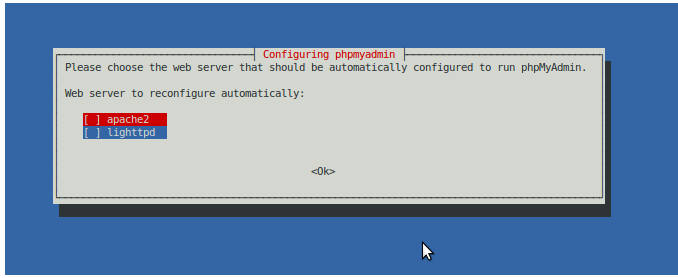
2. During the installation process it'll configure a web server and a database to run phpMyAdmin.


3. As final steps give user name and password to access the web console.

4. After the installation you can access phpMyAdmin via web console via http://localhost/phpmyadmin


5. Inside the admin console you may find all available mySQL databases listed in the top left corner of the window. Simply click on the required database to access it.


6. You can then browse, query, track, drop tables\data, import\export data using this console.


Featured

Selenium - Page Object Model and Action Methods

  How we change this code to PageObjectModel and action classes. 1 2 3 driver . findElement ( By . id ( "userEmail" )). sendKeys (...

Popular Posts